Claude Desktop Third-Party API Setup (2026)
Claude Desktop without signing in: enable Developer Mode, open Configure Third-Party Inference and add QCode.cc as the gateway; one quota shared with your CLIs.
Need an API key? Sign up →Endpoints & base URLs →
On This Page
Last verified: 2026-09-18 · 📄 Per official docs (third-party inference gateway documentation; the app version is not published on the official page)
At a glance
| Item | Details |
|---|---|
| Models you can use | Claude ✅ (Anthropic protocol) · Chinese models (GLM / Kimi / DeepSeek / Qwen, served on the Anthropic endpoint) ✅ · GPT ❌ · Gemini ❌ |
| Protocol & Base URL | Anthropic: https://api.qcode.cc/api (mainland China: https://asia.qcode.cc/api, no /v1) |
| Where to configure | In-app: Help → Troubleshooting → Enable Developer Mode → Developer → Configure Third-Party Inference |
| Official docs | LLM gateway connect |
Claude Desktop is Anthropic's official desktop application (Windows / macOS / Linux), a local alternative to the claude.ai web app for handling PowerPoint, Excel, document, and MCP workflows. The desktop app recently added a Configure Third-Party Inference entry point that lets you point any Anthropic-compatible gateway as the inference backend without signing in to an Anthropic account. This guide shows how to wire QCode.cc into Claude Desktop so you can skip the Pro subscription and reuse your existing QCode quota.
Why Use a Third-Party API
- Use your QCode quota on the desktop: desktop PowerPoint / Excel / MCP workflows can draw directly on your QCode quota
- Cowork is governed by your Claude account: Claude Cowork is controlled by your subscription and organisation settings, and the official docs never describe combining it with a third-party inference gateway (see the red note below)
- Unified quota: Claude Desktop, Claude Code, and Codex CLI all draw from the same QCode API Key
- Several model families: The QCode.cc gateway offers Anthropic (Opus 5 / 4.7, Sonnet 5 / 4.6, Haiku 4.5), OpenAI, and Chinese models
- Team rollout: The configuration panel can Export a JSON profile that you push to team members via Jamf, Intune, or Group Policy
Prerequisites
- Claude Desktop installed (official download, Windows / macOS / Linux)
- A QCode.cc API Key (starts with
cr_), available from the dashboard - Windows 10/11 users: a first-time install may prompt you to enable Virtual Machine Platform and reboot (one-time only)
Configuration Steps
Step 1: First Launch — Do Not Sign In
Tip: in the signed-out state, the menu button in the top-left corner may not respond to clicks. Click into the email input field to give it focus, then press Tab to jump to the menu button and hit Enter to open it.
Step 2: Enable Developer Mode
Click Menu → Help → Troubleshooting → Enable Developer Mode.
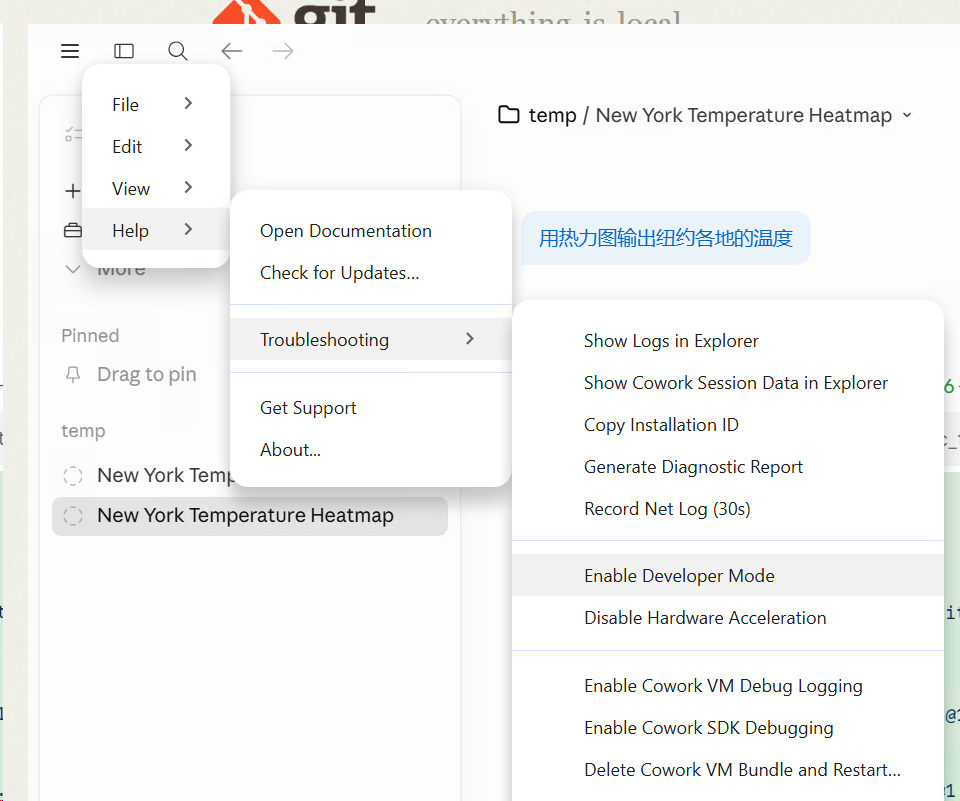
Once enabled, a new Developer entry appears in the top menu bar.
Step 3: Open Third-Party Inference Configuration
Click Menu → Developer → Configure Third-Party Inference....
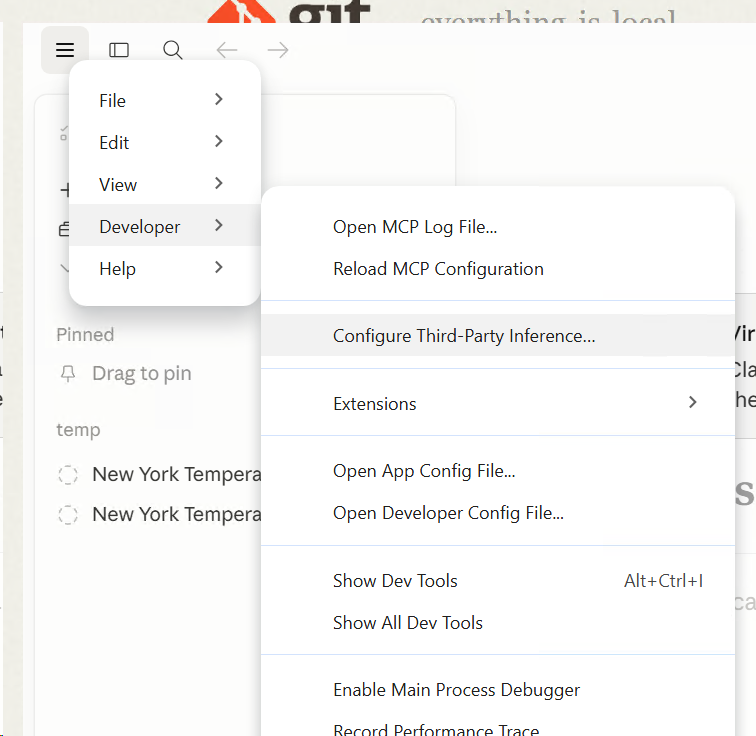
Step 4: Fill In Gateway Credentials
In the Connection section, select Gateway (Anthropic-compatible) mode and fill in the fields as shown:
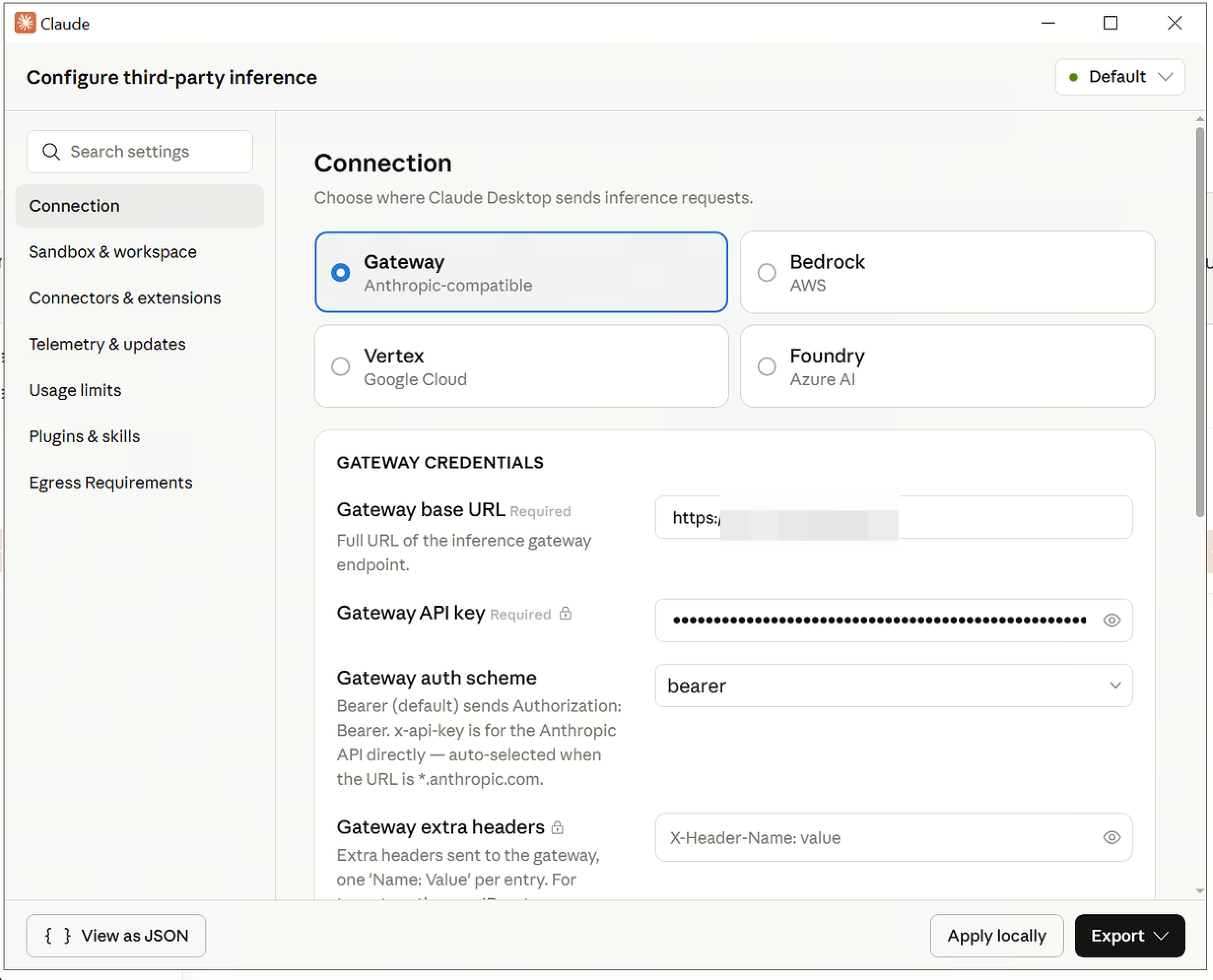
| Field | Value |
|---|---|
| Gateway base URL | https://asia.qcode.cc/api |
| Gateway API key | Your QCode.cc API Key (starts with cr_) |
| Gateway auth scheme | Leave as default bearer (the QCode.cc gateway accepts both bearer and x-api-key, no change needed) |
| Gateway extra headers | Leave empty |
Do not add a trailing
/to the base URL — Claude Desktop appends/v1/messages,/v1/models, and other paths automatically.
Step 5: Apply the Configuration
Click Apply locally in the bottom-right corner. The configuration is written to your machine and takes effect immediately, and the model dropdown will auto-populate with the 25+ models exposed by QCode.cc. Open a new conversation in the main window to start using it.
Choosing the Gateway base URL
Note: Pick the endpoint that matches your location:
| Your location | Gateway base URL |
|---|---|
| Mainland China (recommended) | https://asia.qcode.cc/api |
| Mainland China (alternative) | https://api.qcode.cc/api |
| Outside mainland China | https://api.qcode.cc/api |
For the full endpoint reference, protocol paths, and geo-routing rules, see Endpoints and API Paths.
Notes on the Model List
Under normal conditions, Claude Desktop calls /v1/models and the dropdown populates automatically with the full list. No extra steps are needed.
If the dropdown stays empty (rare, depends on the environment), you can populate it manually:
- In the configuration panel, click Export ▾ → Open in file manager and locate the Claude Desktop JSON config
- Add an
inferenceModelsarray to the JSON:
{
  "inferenceProvider": "gateway",
  "inferenceGatewayBaseUrl": "https://asia.qcode.cc/api",
  "inferenceGatewayApiKey": "cr_xxxxxxxx",
  "inferenceModels": [
    "claude-opus-5",
    "claude-opus-4-7",
    "claude-sonnet-5",
    "claude-haiku-4-5-20251001"
  ]
}
- Save and fully quit and relaunch Claude Desktop (not just close the window)
Team Deployment (MDM)
The Export ▾ button in the bottom-right corner exports the current configuration as JSON, which pairs with enterprise MDM tools for bulk rollout — no manual setup per team member:
- macOS: push a user-level configuration profile via Jamf or Mosyle
- Windows: push to
%APPDATA%\Claude\via Intune or Group Policy - Linux: write to
~/.config/Claude/via Ansible or Puppet
Anthropic publishes no official MDM guide for this exported JSON; what you can rely on is the file-deployment capability of your own MDM tooling. For managed settings, see Claude Code Managed settings — that is a Claude Code mechanism, not the desktop app
Shared Quota
Claude Desktop, the Claude Code CLI, and the Codex CLI all use the same QCode.cc API Key and share the same plan quota. Signing in from multiple clients does not double-bill you. See Billing for the full pricing rules.
Claude Cowork
Claude Cowork is described officially as sharing Claude Code's agent architecture with no terminal: you describe an outcome, walk away, and come back to formatted documents, tidied files or synthesised research. The same article states that Cowork sessions currently run remotely in the cloud (beta), attached to your Claude account and followable across desktop, web and mobile; because it is agentic and internet-connected, Anthropic also publishes safety guidance
🔴 The claim that connecting QCode unlocks Cowork without Pro has been withdrawn. The official gateway documentation covers Claude Code and its surfaces and never mentions Cowork; the support article this page used to cite ("install and configure Claude Cowork with third party platforms") returns 404 as of 2026-09-18, so there is nothing left to verify the claim against. Treat Cowork as governed by your Claude plan and organisation settings, and do not budget it as QCode usage
Which surfaces the desktop gateway actually covers
Per the official docs (Connect Claude Code to an LLM gateway), what runs through your own gateway is Claude Code and its surfaces: the VS Code extension, the Desktop app, GitHub Actions, the Agent SDK, plus Slack / cloud sessions / Remote Control. On the desktop side, once third-party inference is configured, the conversations, Skills and MCP calls you make there go to the gateway you set — that is what this page's steps cover.
- Pick a model: choose
claude-opus-5orclaude-sonnet-5explicitly inside a task (claude-opus-4-7is still on sale) rather than relying on the default - First launch: the desktop app may download a runtime (a few hundred MB) the first time — wait for it
- What counts as QCode usage: only requests that actually leave through the QCode gateway draw on your QCode plan; billing rules are in Billing
- Cowork is not in that list: see the red note above — do not plan around "Cowork works once QCode is connected"
- Some connectors still need an Anthropic account: higher-level connectors such as Google Drive or Notion may still require an Anthropic sign-in; the capability list is in Get started with Claude Cowork
Limitations and Differences
- The claude.ai web app is not supported: third-party API support is a Desktop-only feature; the browser still routes to your Anthropic account
- Gateway mode = local sessions only: official wording — the environment picker offers no SSH sessions and no Anthropic-hosted cloud environments; on a remote host, run the CLI there with the gateway variables set
- Remote Control is unavailable while the gateway configuration is active (official); it also requires a claude.ai identity, which a third-party gateway does not provide
Gateway was unreachableofficially means the app could not reach the configured base URL at startup — check the URL and network path with a curl test (see troubleshooting)
FAQ
The model dropdown is empty
- Check that the base URL has no trailing
/ - Confirm the API Key is complete and starts with
cr_ - If it is still empty, follow "Notes on the Model List" and populate
inferenceModelsmanually in the JSON
401 Unauthorized error
- The API Key must start with
cr_and have no leading or trailing whitespace - Verify at qcode.cc/dashboard that the key is still valid
- Leave Gateway auth scheme as the default
bearer— do not switch tox-api-key
Difference between "Apply locally" and "Export"
- Apply locally: writes to the local config file and takes effect immediately for the current user
- Export: exports a JSON file for team MDM rollout or backup
Can I run the desktop app and the CLI at the same time?
Yes. Claude Desktop and the Claude Code / Codex CLI each read their own configuration independently (the desktop app reads its own JSON; the CLI reads ~/.claude/settings.json or ~/.codex/config.toml). They share the same QCode API Key and quota without conflict.
How does this relate to CC Switch?
CC Switch manages base URL and credential switching for CLI tools (Claude Code, Codex, etc.); Claude Desktop runs its own developer-mode configuration independently. The two target different client form factors and operate separately.
Next Steps
- Endpoints and API Paths — Full reference for QCode.cc's three protocols and three ingress domains
- Claude Code Tutorial — Master the CLI workflow end-to-end
- CC Switch Setup — Manage multiple CLI base URLs from one app
- Billing — Understand plans and quota
Get started with QCode
One API key for Claude Code, Codex and more — billed per token, per-model prices on qcode.cc/models